The Instructional Design and Technology (IDT) team recently wrapped up our Professional Learning Community (PLC) focused on Canva. Each participant received a 1 year license to Canva Team, a very capable, collaborative, online graphics creation platform. One of its strengths is suggesting templates, themes, and imagery to get started, which can inspire beginners and advanced designers alike to create appealing and effective graphics to inform and promote their objective.
As a part of being in the Canva PLC and receiving a 1 year paid license, participants were asked to complete milestones such as attend a required Canva PLC Kick Off Orientation and present at a capstone Showcase of their work and audience feedback. In between we offered multiple synchronous check-in opportunities as well as an asynchronous Google Group. The purpose of the Google Group, essentially an email list serv, was to grow a community of learning, receive and respond to questions to support each other in the exploration and inspiration while using Canva. Thank you everyone who was interested in participating and congratulations to those who successfully completed the requirements of the Canva PLC! (Anuschka Faucci, Ashley Biddle, Chelby Onaga, Cheryl Urasaki, HauʻolihiwahiwaMoniz, Myat Thor Thiha, Nikki Manuel, Syreeta Washington, Allan Nebrija)
Join us for a practical, 2 part, hands-on workshop on Intelligent Agents.
Part I: Lamakū: You will be added to our Lamakū sandbox for the asynchronous portion of our workshop to learn about how intelligent agents work.
February 9 – 18, 2026
Part II: Zoom: Walk through how you can apply intelligent agents for various situations in your course.
Thursday, February 19, 2026 1:00 – 2:00 PM
*Lamakū Intelligent Agents is an automated tool that can monitor student activities such as logins, grade thresholds, or assignment submissions. It will log a report for the instructor and/ or send tailored email to students on your behalf when specific criteria are met.
This past semester, the Educational Media Center’s Video Production Unit had the opportunity to collaborate on one of the most uniquely creative projects that we’ve been a part of, My Monumental Summer, the mural exhibition curated by Leeward Community College’s Ho‘ikeākea Gallery curator, Kosta Kulundzic.
The exhibit brought together five artists from diverse personal and professional backgrounds, each invited to paint a large-scale mural reflecting their own summer experiences. From the moment the project was introduced, we knew it had the potential to become not only a compelling visual showcase, but also an educational resource that would resonate deeply with Leeward students.
How the Collaboration Began
Our initial involvement began simply: offering guidance on setting up time-lapses for documenting each mural’s creation. But as conversations continued, the collaboration naturally expanded. It became clear that this exhibit wasn’t just about five murals on the gallery walls—it was about the stories, techniques, and artistic journeys behind them.
Together with Kosta, we began shaping the idea of a video series that would serve as a reflective and educational companion to the exhibition. The goal became twofold:
Document the creative process from start to finish
Capture the voices and experiences of the artists themselves for students seeking insight into real-world art practices
Inspiration and Approach
Before filming, our team looked to successful artist-focused programs for inspiration—particularly the Louisiana Channel, known for its in-depth, thoughtful portraits of artists and their philosophies. That format aligned with what we hoped to achieve: not promotional hype, but honest, grounded conversations paired with visuals of the artists at work.
We structured the project around two consistent elements:
Ongoing b-roll coverage of each mural’s creation
End-of-project interviews that reflected on each artist’s process, background, and growth
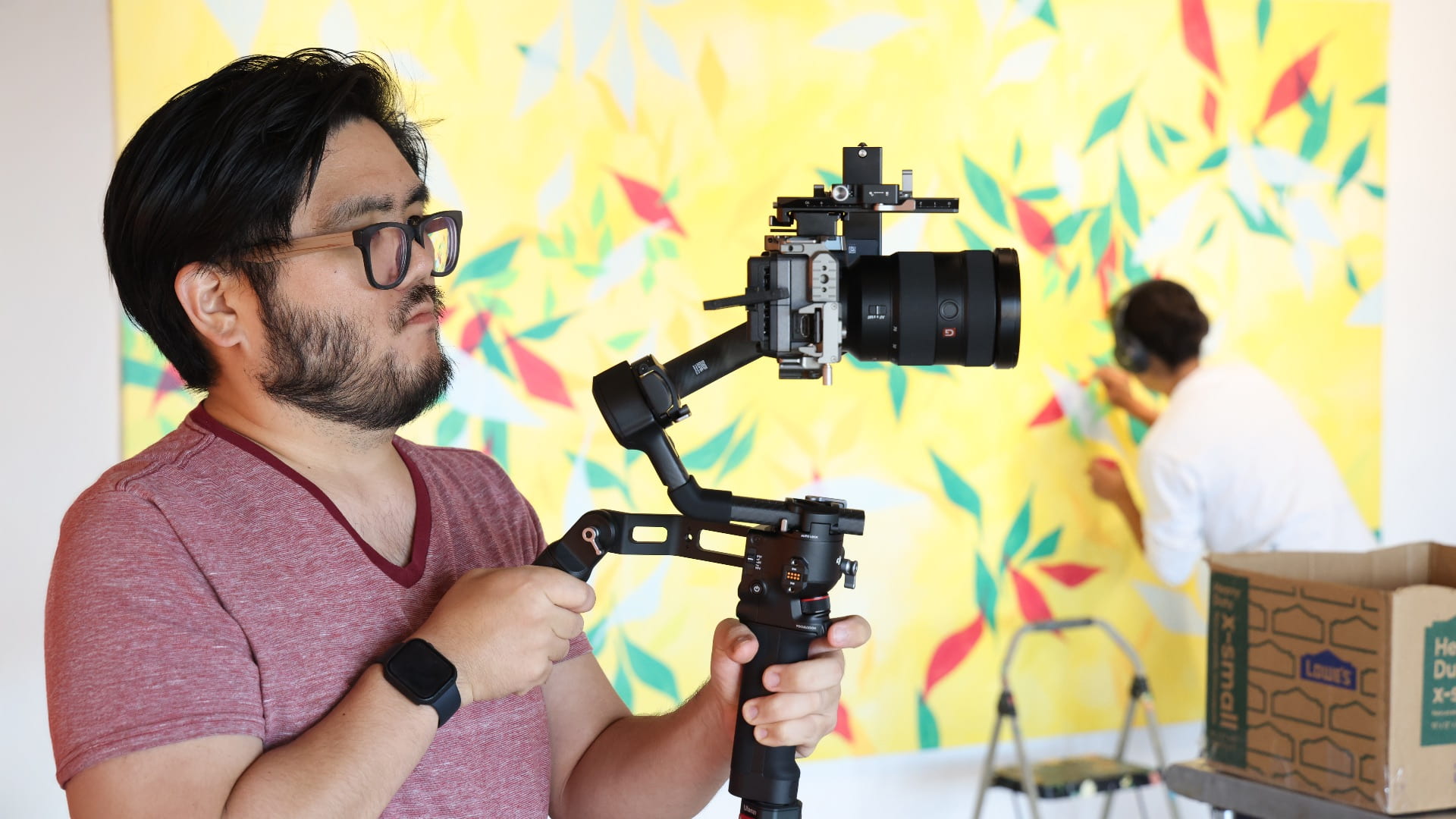
The b-roll required us to revisit the gallery multiple times throughout the two-month painting period. This allowed us to document the evolving energy of the exhibit—and the uniquely different ways each artist approached a blank wall.
Some worked methodically and precisely. Others painted with expressive spontaneity. Some spoke loudly through color; others expressed themselves through subtle linework. Filming these differences—and seeing their eventual points of overlap—became one of the unexpected pleasures of the project.
Growing Our Toolkit Along the Way
A project of this scale required us to expand our recording capabilities. Several team members invested in compact equipment—small-format cameras, a new gimbal for fluid stabilized shots, lightweight lighting setups, and flexible grip solutions. These additions allowed us to move quickly and quietly around the artists without interrupting their workflow.
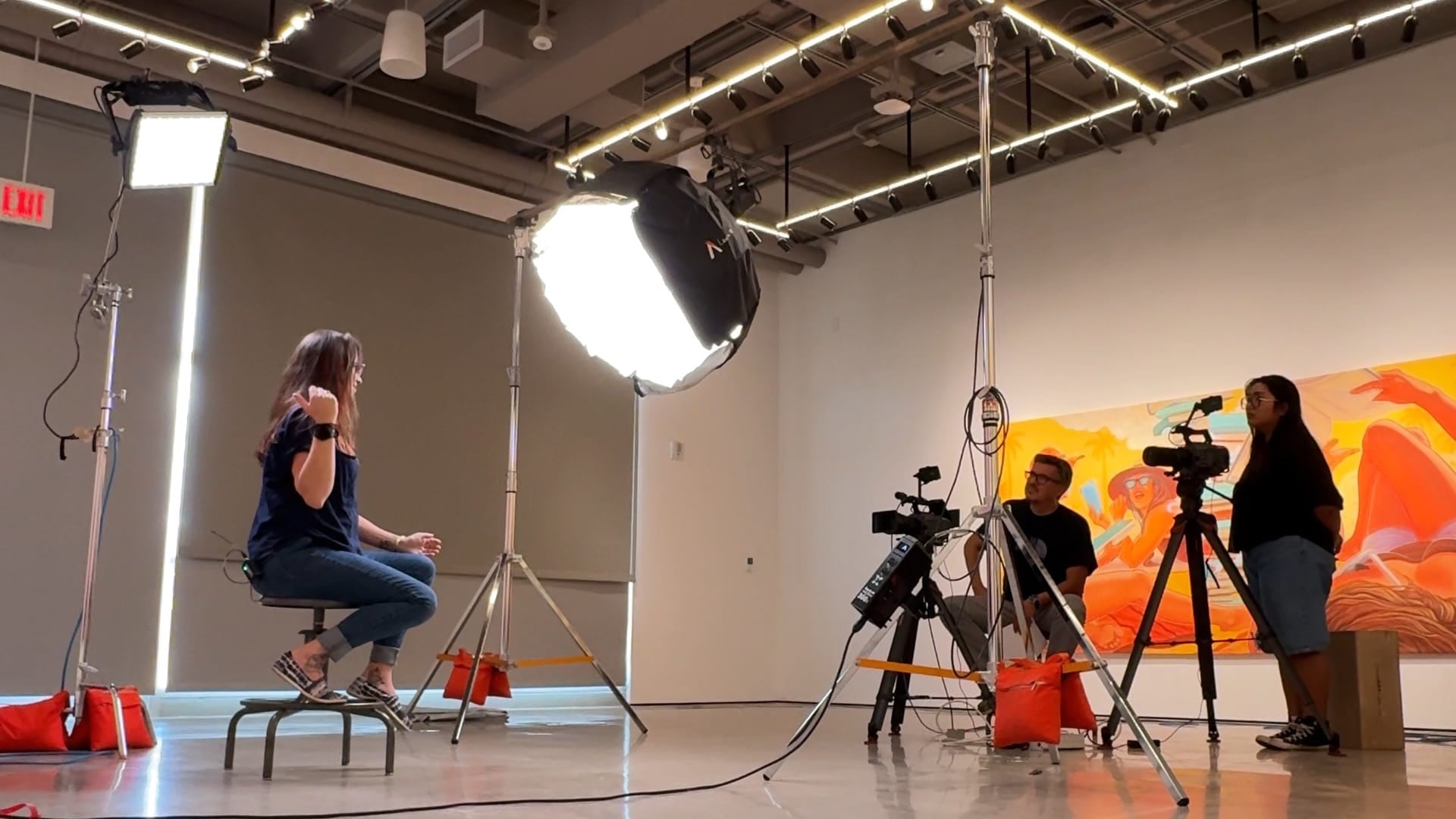
The project also gave us the chance to take studio-level production into the field, experimenting with new configurations, lenses, and lighting strategies that aren’t typically needed in controlled indoor environments. Those field tests ultimately became an important part of the learning experience for our whole unit.
Interviews: Capturing the Artists Behind the Art
We scheduled the interviews close to the end of the exhibition. Although we originally aimed to release the videos by the gallery opening, scheduling constraints shifted the format toward a reflective series rather than a promotional one—and the project benefitted from that evolution.
Across two days, we filmed all five interviews. Kosta conducted the sessions with a natural ease that helped each artist open up about their personal histories, creative challenges, and artistic philosophies.
To support the process, we pre-generated question ideas by feeding background information into AI tools that helped surface themes, connections, and possible discussion angles. We then refined those questions with our own insight so the interviews remained organic and human-centered.
Editing: A Labor of Love
Editing the series required careful shaping. With hours of footage across months of recording, the challenge was identifying the clearest narrative threads while honoring each artist’s voice and perspective.
We used transcripts and AI-assisted organization tools to help group quotes, categorize themes, and map segments into a cohesive structure. This allowed us to meet the tight turnaround time required to release the videos before the exhibit closed in mid-November.
Despite the pressures, the edit was deeply rewarding. Each artist contributed genuine insights—about life, creativity, discipline, community, and personal identity—that we believe will be meaningful for Leeward students encountering these videos in future classes.
Looking Ahead
Working on My Monumental Summer reminded us of the power of art—and the importance of documenting the creative processes happening across our campus. Projects like this showcase the talent within our community and create valuable learning resources that connect students to real experiences.
We’re grateful to Ho‘ikeākea Gallery, to Kosta, and especially to the participating artists for allowing us into their space, their process, and their stories. We hope this is only the beginning of future collaborations that blend creativity, education, and community in ways that inspire both our students and ourselves.
H5P is a software ecosystem that provides instructors with 53 tools to create engaging learning activities for student learning. The web based activities are responsive and adjust to either desktop, laptop, mobile device, Safari, Chrome, Firefox. Take a look at the course samples created and shared in the UH H5P Interactive (Faculty) Gallery. H5P + Laulima is officially supported by the UH ITS Helpdesk, The learning activities are capable of being embedded in Laulima course sites and automatically registers student interaction scores in the Laulima Gradebook.
For the past few semesters the EMC has been participating with the UH System H5P work group to bring H5P to instructors. Many Leeward CC faculty have participated in the UHOIC H5P + Laulima program, currently on cohort three of faculty adopters with several alumni participating in the I Mua community support group. Over the summer the university announced that faculty can purchase H5P licenses directly from UH ITS Site License office (with departmental funds).
Be on the look out for upcoming EMC hosted H5P workshops this semester. To learn more about H5P please take a look at the recently completed Practical Guide to H5P.
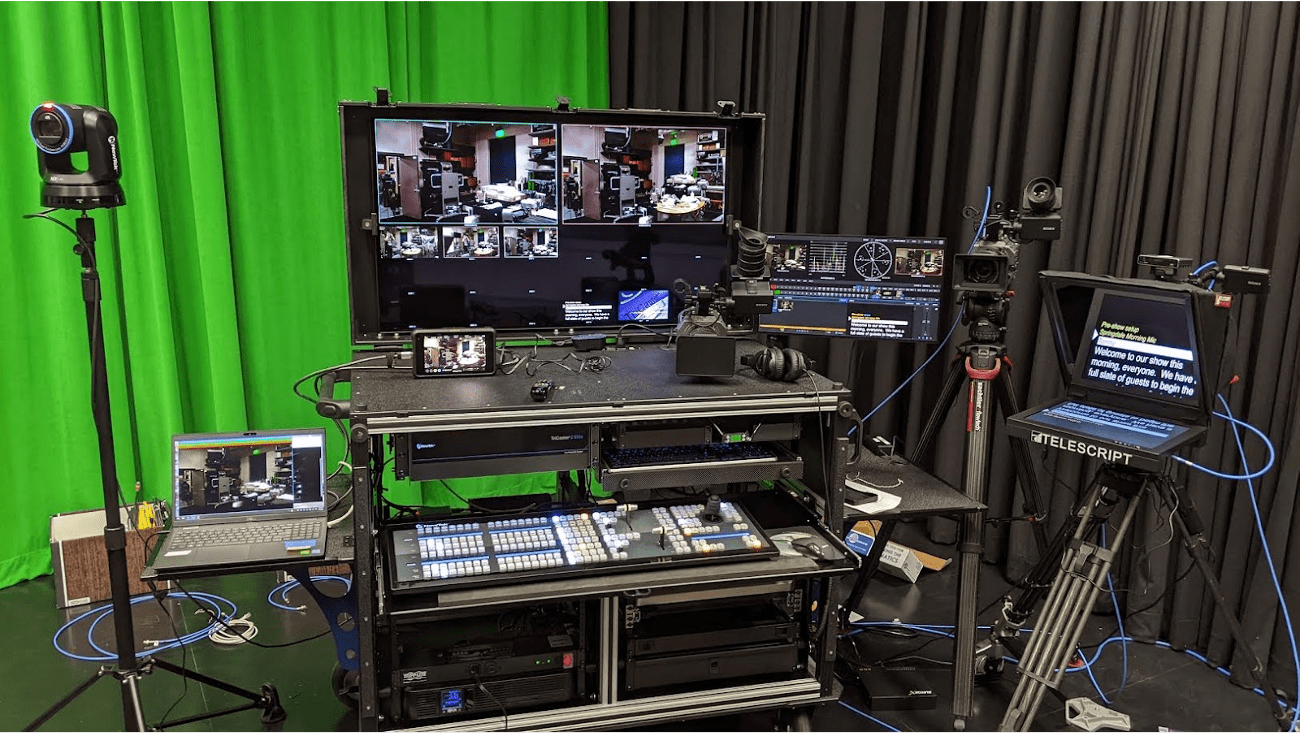
The Media Center Mobile Studio/Control Room (MCMS/CR) was created in response to the increasing video demand during the COVID-19 pandemic and the social distancing protocol. The MCMS/CR has been instrumental in providing various live-streaming and pre-recorded campus and instructional programming including but not limited to: Convocation, Graduation, Board of Regents Meetings, Culinary Assemblies, The Reading Room series, Professional Development programs, Community Outreach and Marketing initiatives.
After the pandemic, the MCMS/CR equipment upgrade has improved our studio setup while affording us the mobility of shooting on-location. Prior to the MCMS/CR equipment upgrade, in order to “take the show on the road,” the EMC staff had to disassemble and reassemble equipment from the Media Center Control Room and Studio to create a make-shift, mobile control room in order to provide a full-multi camera production on-location. The MCMS/CR eliminated the reconfiguration of equipment by consolidating them into a specifically designed mobile cart. It was a necessary step to providing a streamlined, flexible workflow to meet campus video production needs.
Designed with portability in mind, MCMS/CR allows our limited personnel to safely, effectively and quickly transport the main components of a professional control room to provide broadcast quality video production capability to remote locations on or off campus (e.g. Theatre, laboratory classrooms, and event halls).
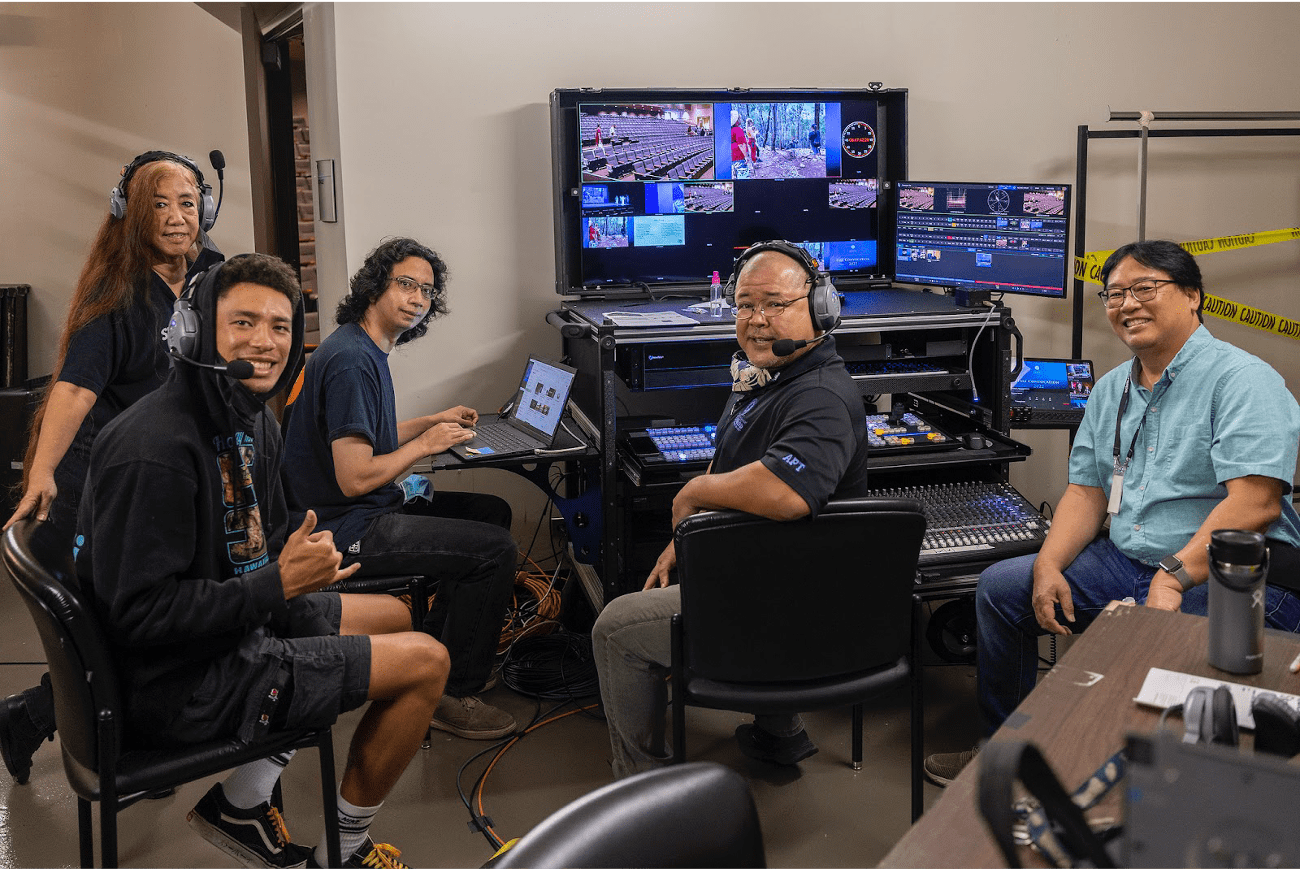
Convocation: Production crew backstage of the theatre.
At the heart of the MCMS/CR is the Tricaster TC-2, video production platform. One of the stand out features of the TC-2 allows for seamless streaming service compatibility with platforms such as Zoom, Skype, MS Teams, etc. enhancing the participants’ experiences providing two-way communication from the Media Center Studio to participants joining remotely. Additionally the TC-2 allows for delivery to most popular streaming services, e.g. YouTube, Facebook and other social platforms. This built-in streaming feature was integral during the pandemic to provide information to the masses when in large in-person events were restricted. At its core, the TC-2 is a multi-source video switcher for cameras, computers, etc. In addition, it has the ability to store and playback multimedia assets such as video roll-ins, graphics and audio. Additional systems allow monitoring, handling additional tasks for teleprompting, audience and production asset management from the control room and studio floor.
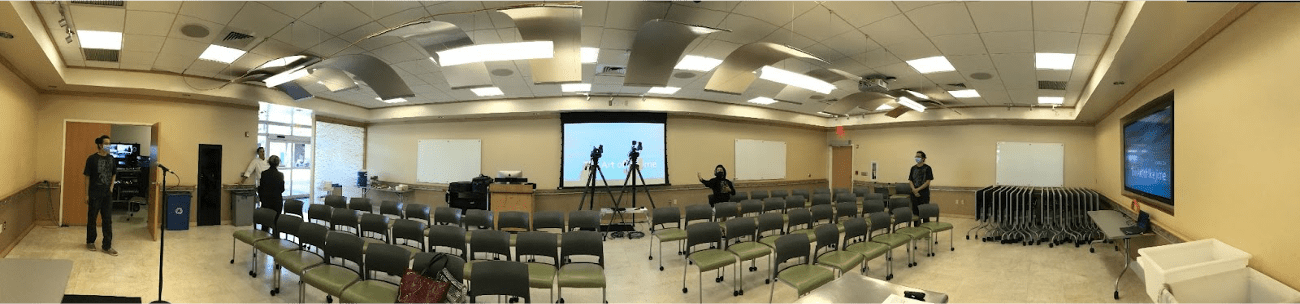
Culinary Assembly in The Ka’ala Room (GT 105).
While the MCMS/CR functions as a mobile solution, its primary function is for in-house production in concert with the EMCʻs studio floor and lighting system. While “docked” to the EMC control room console, the MCMS/CR continues all capabilities formerly present in previous studio set up while also extending its capabilities to include variable video resolutions, more audience interactivity, extended quality assurance and streamlined operations. In addition to its mobile capabilities, the studio/control room is available for instructors to create various media deliverables to enhance and compliment their in person and online courses.
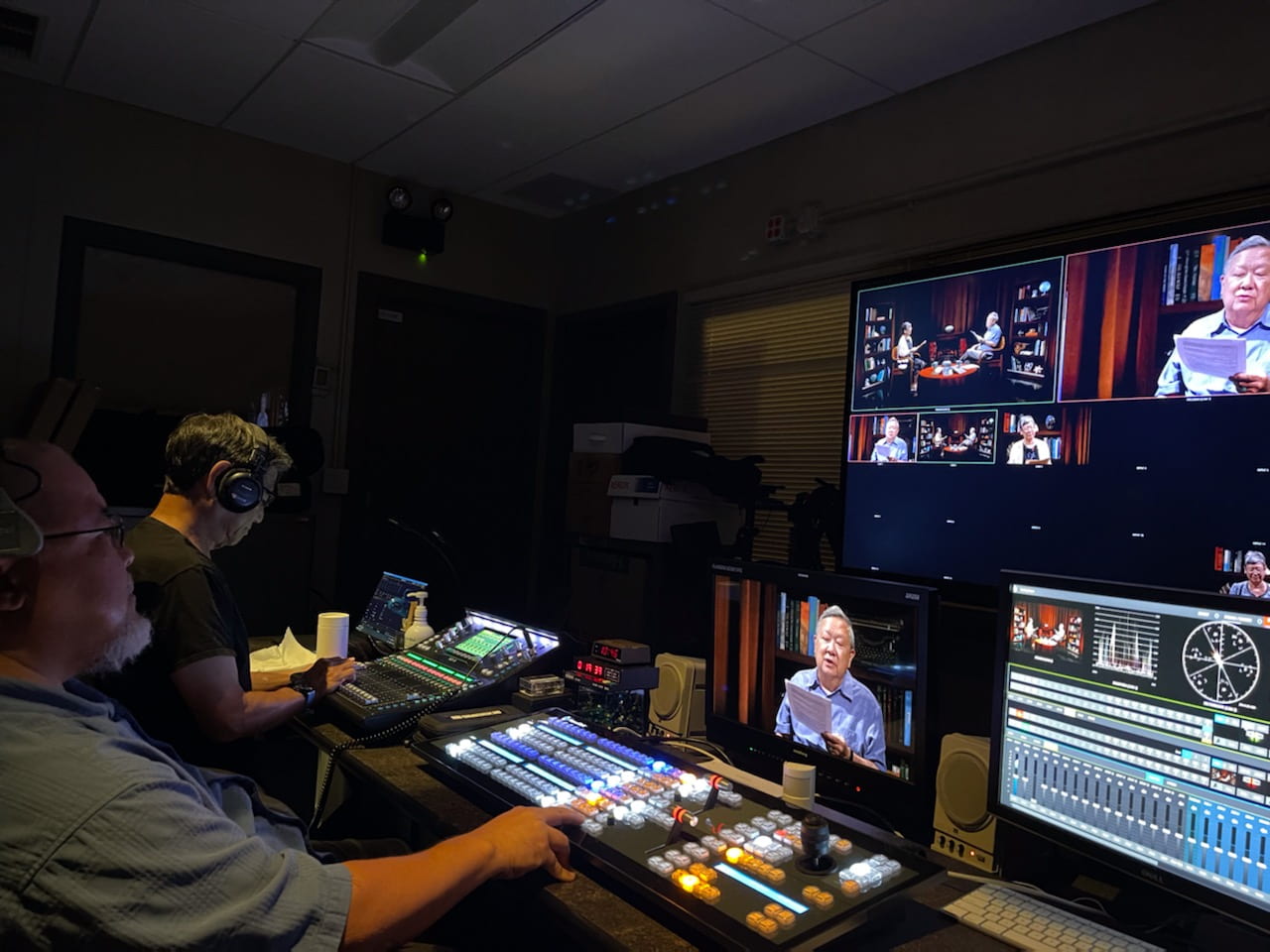
The Reading Room: In-house EMC Control Room.
More information about the TC-2’s features and a few highlights:
Allows the audio operator the ability to control sound to studio for video playback
Live-streaming (Zoom web conferencing, YouTube, etc.) from studio and control room
Allows for talent on the studio floor to communicate and respond to web conference attendees (Zoom)
Ability to control studio lighting from the control room
Ability to prompt talent from the control room, off-air (with a teleprompter)
Ability to have cameras on-location and switch from the studio (remote studio)
Have an idea for videos that supplement course material or interested in a tour of our facility? Please contact Camden Barruga at extension #604 or email camden@hawaii.edu.
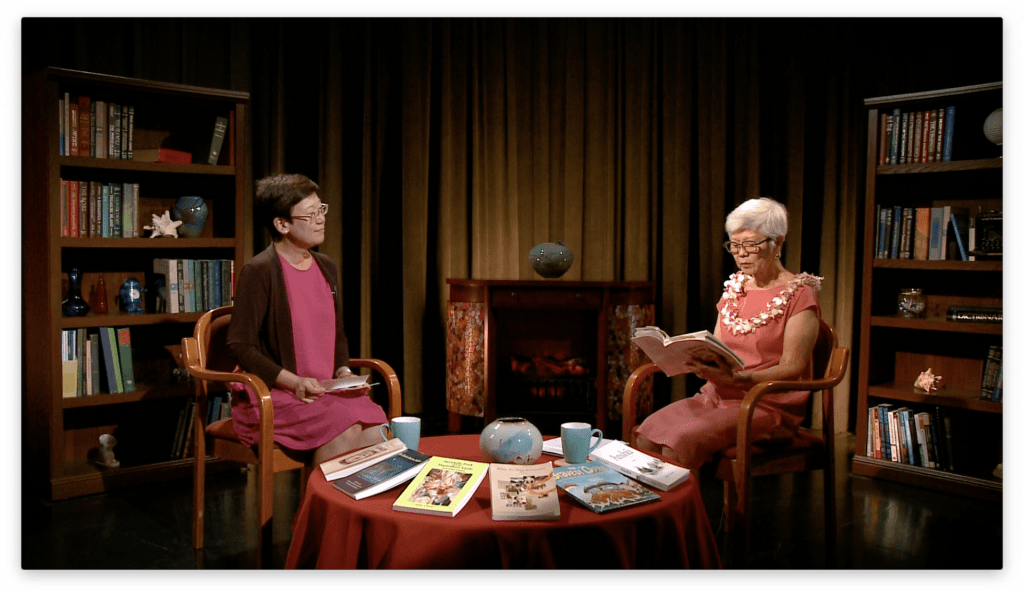
When you think of a reading room you think of a cozy, quiet space filled with books and comfortable furniture where you sit with a cup of hot chocolate or coffee and explore a literary universe filled with galaxies of characters, styles, genre, and points of view. Three years ago, Leeward Community College embarked on a project to record local literary talent – to hear them perform their own works and to explore their creative process.
When Language Arts faculty member Ann Inoshita approached the Educational Media Center’s Video Production Unit with a request to record a local author, then Production Manager Les Matsuura saw this as an opportunity to create a unique archive of local talent. Matsuura said, “I’ve always had a soft spot for oral histories and the documenting of events, individuals, and content of historical and cultural value. When Ann came to us with her request, I proposed creating a series with the intent of building a library of local talent sharing their works and their creative process. Ann loved the idea of being part of something that might be useful to students interested in creative writing and to the larger community as well. She has taken on the role of producer, identifying and inviting Hawaii’s talented writers to be a part of The Reading Room. She’s also taken on the role as host of the program.”
Host Ann Inoshita and guest Juliet S. Kono on set
Asked to describe The Reading Room, Inoshita said, “The Reading Room is recordings of author interviews and readings… These literary recordings include many Hawaii authors and are a valuable resource for courses.”
The programs are designed to invite viewers to join the host and artist in an intimate and comfortable setting. Now in its second series of recordings, the set has evolved from a minimalist set with a coffee table and books floating in black limbo to a fireplace chat type of setting. The series has an artistic open designed by Jordan Teruya that fits perfectly with the intended mood. Additionally, Inoshita has noted that the open has helped contribute to the Reading Room brand. “The opening sequence contains theme music and video that introduces the audience to The Reading Room. This is a recognizable brand that many faculty from various campuses have identified and respect.”
The creation of a library of local artistic talent and providing a resource for anyone interested in the creative energy behind literature in Hawaii would be a motivating force for anyone in production. The Media Center’s Video Production Unit finds itself in that enviable situation with the potential to make significant contributions to the literary community and the establishment of Leeward Community College as a documenter and preserver of artistic endeavors in Hawaii. Inoshita appreciates the energy the Unit brings to the project. “The production team has great direction and technical skill to create high-quality and professionally made videos…The Video Production staff share the vision and passion of The Reading Room. Collaboration is a positive experience as we record literary performances. I look forward to continued support and collaboration”
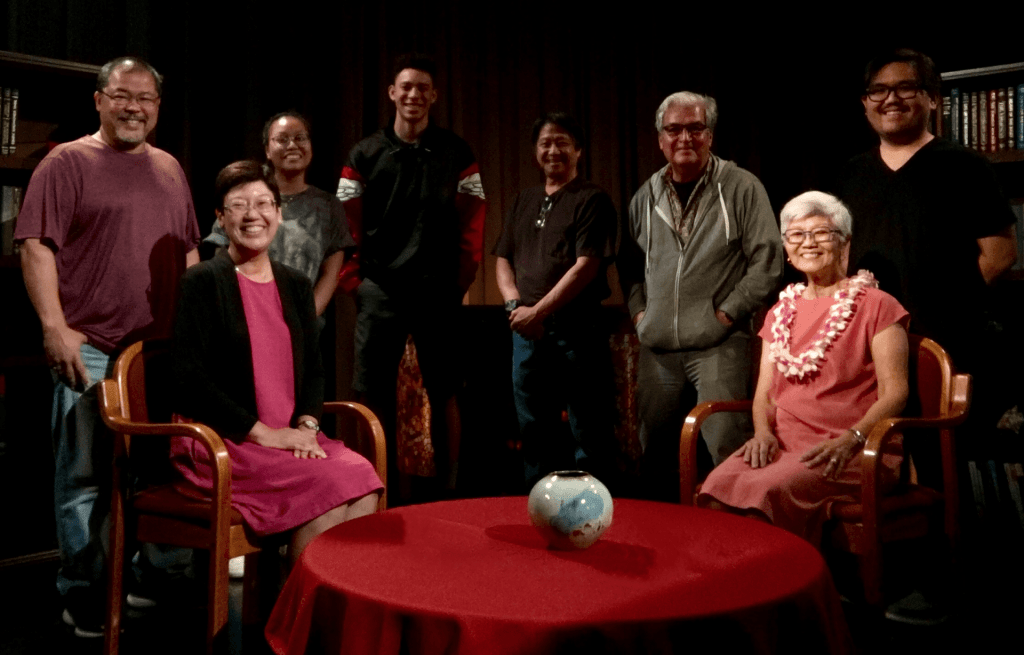
Cast and Crew of The Reading Room
To view the Reading Room videos click on this link: The Reading Room.
If you would like to produce a video highlighting a project or event you’re involved with, contact the EMC Video Production Unit at ext. 0604, or submit a services request form at Video Services Request.
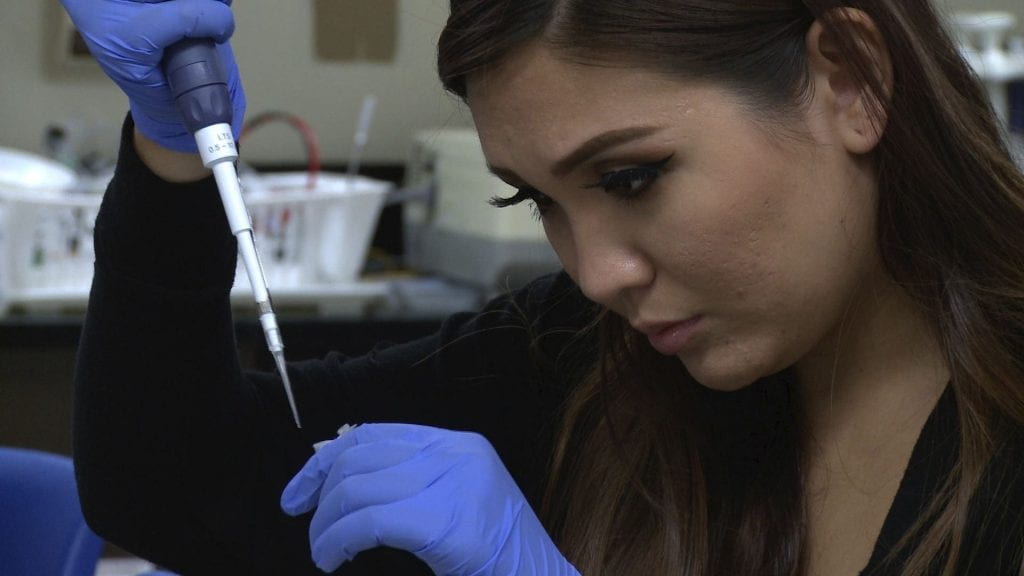
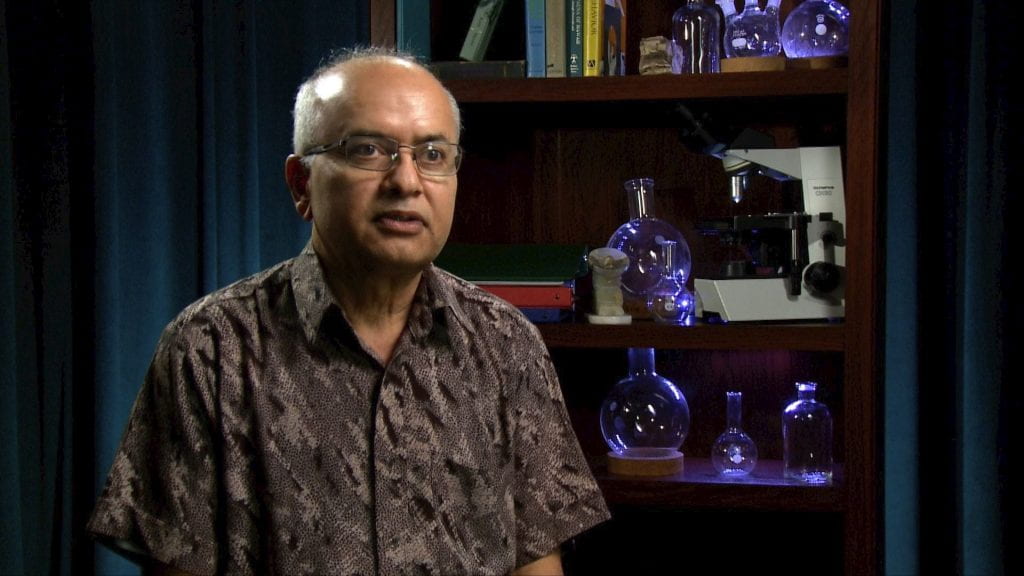
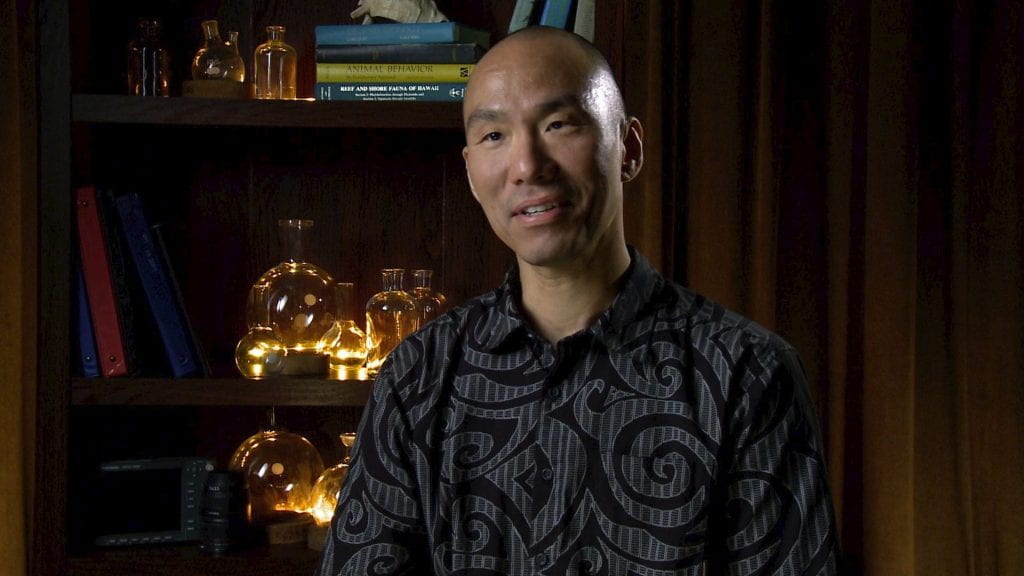
EMC Video Production Unit Captures Amazing Student Scientists Conducting Research at Leeward Community College
For the last 17 years, Leeward Community College has provided students opportunities to conduct research projects that actually contribute data to larger biomedical research efforts.
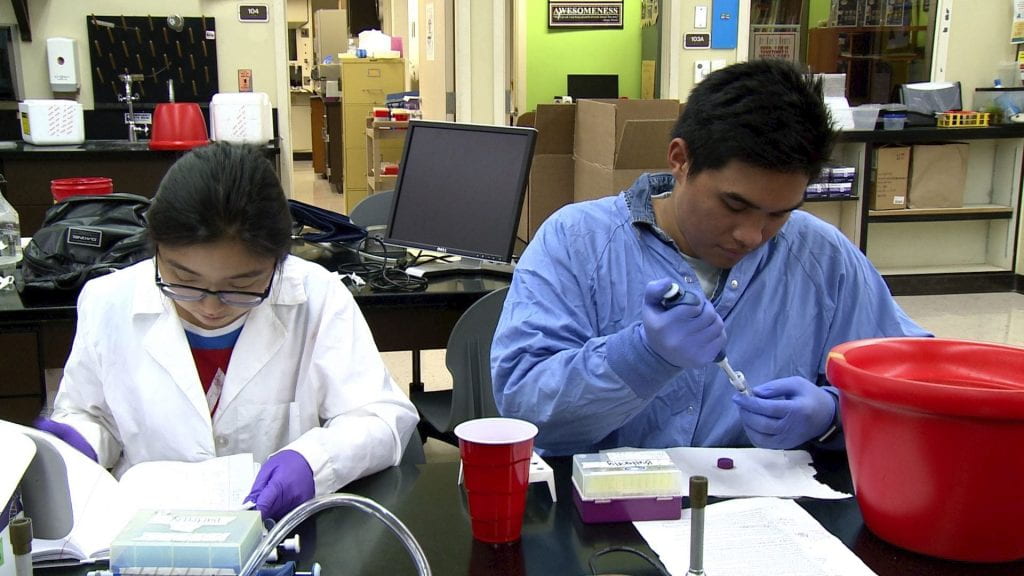
Each summer, teams of students are recruited to be part of INBRE, the IDeA Network for Biomedical Research Excellence, a program of the National Institutes of Health. Under the guidance of Professors Kabi Neupane and Helmut Kae, these students learn research techniques and lab skills in well-equipped labs right here on campus. They collaborate with researchers at UH Manoa, making contributions that have real scientific impact. Even more, their work could ultimately have global implications, feeding the hungry, increasing agricultural productivity, curing presently little understood diseases.
A few months ago, the EMC’s Video Unit partnered with Drs. Neupane and Kae to document the activities of these remarkable students…and they are remarkable. These young scientists are amazingly comfortable, knowledgeable, and poised in the lab environment. They are mature and eloquent, and all of them demonstrate an impressive level of passion and excitement for their projects. The videos produced help to highlight the professionalism and quality of the program.
Dr. Neupane, Campus Coordinator for the INBRE program expressed his appreciation for the work the Video Production Unit provided. “We are extremely pleased with the high quality work and care of the Media Center Video Production staff. We would love to continue the partnership in future. The videos made will be used to highlight our undergraduate research program at Leeward CC. This will help us in our recruitment process.”
Dr. Kae, the Campus Co-Coordinator, was also appreciative of the effort put forth by the production staff. When asked for his impressions he said he was “…quite amazed with the production quality. I wasn’t really sure what to expect, but it definitely exceeded anything that we imagined it would look like.” He added, “The staff was very professional, and extremely courteous. They put our students at ease during filming, and really made this process as smooth as possible. I really appreciated the fact that they were cognizant of the work that was going on, so they tried to be minimally disruptive throughout the process.”
We look forward to continuing this partnership with Drs. Kae and Neupane, and having the opportunity to work with more of their students. Aside from creating noteworthy videos for our campus programs, our staff gets great satisfaction and enjoyment in meeting and working with our inspirational young scientists.
To see the videos about this program and these amazing students, click on this link: INBRE Playlist. If you would like to produce a video highlighting a project or event you’re involved with, contact the EMC Video Production Unit at ext. 0604, or submit a services request form at Video Services Request.
Advocates say the short-term work opportunities give students real, on-the-job experience and help repair the âbrokenâ transition from college to career.
This young sector probably gets more attention than its results have merited. But new relationships with Yale and Harvard demonstrate why it remains relevant.