Skip to content
  • Blog Home
  • EMC Website

Educational Media Center

Leeward Community College

Tag: google apps

Ed Tech

Why Exceed Proficiency?

Shoot for the Stars

Do you have a rubric listing a range of developing proficiency to meeting proficiency and have wondered how to recognize students who’ve exceeded proficiency?  Have you seen a rubric that ends with exceeds proficiency, stating that exceeding equates to full credit for the assignment?  If so you may have pondered, how can I encourage students to push themselves to strive to exceed proficiency. Awarding extra credit points each time students exceeds proficiency may not be practical, but if a student shows an established record of exceeding proficiency shouldn’t they be recognized for it?

Recognizing Exceeding Proficiency

Single Point Rubrics

The idea of a single point rubric (composed in Laulima Lessons) is that you simply specify a single column for what the students need to do in order to demonstrate they Meet Proficiency and receive full credit.  Student who do not meet all the criteria would be in the Developing proficiency and receive less than full credit.  Conversely students to truly Exceed Proficiency receive full credit and recognition on the class sticker board.  Overtime should a student receive four stickers they will then receive extra credit.

Simple Sticker Chart

The idea is to recreate (in a Google Doc) the classic motivational sticker chart found in many grade school classrooms. Gamification of your teaching can be complex, but the classic sticker chart incorporates some of the core gaming elements in an easy to update and maintain leaderboard which recognizing individual student accomplishments. This type of sticker board can be easily created in a Google Doc and embedded into a Laulima course site.  The instructor has Edit access while the students have View access.  For the instructor it is as simple as copying and pasting the sticker icons as appropriate.

Thoughts, questions, or feedback, please comment below.  – Mahalo

July 4, 2022July 7, 2022by bhirata
EMC

New Updates for Google Apps: Gmail, Meet, and Sites

Gmail

Tasks

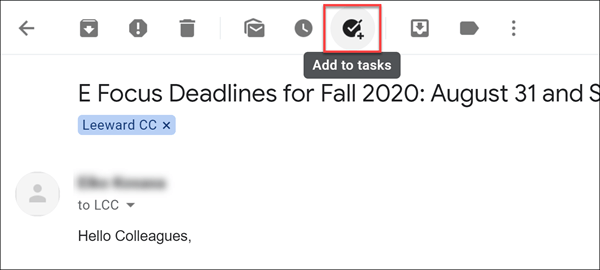
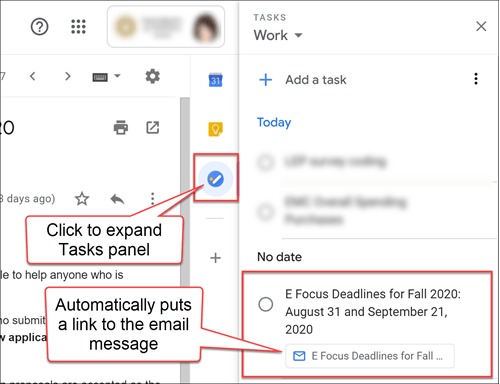
Gmail now has a button in the toolbar to add an email message to Tasks. Not only will it add to your Tasks list (conveniently in the right side panel of your Gmail) but it automatically puts a link to your email message so you can pull it up quickly from Tasks instead of rummaging through your emails.

Gmail add to tasks button

Gmail Tasks list panel

Once you have the item in your Tasks, you can edit its title and put a due date (which puts an entry in your Google Calendar, too). When you’ve completed the task, click the radio button next to it to cross it off your list! ✔️

Google Meet

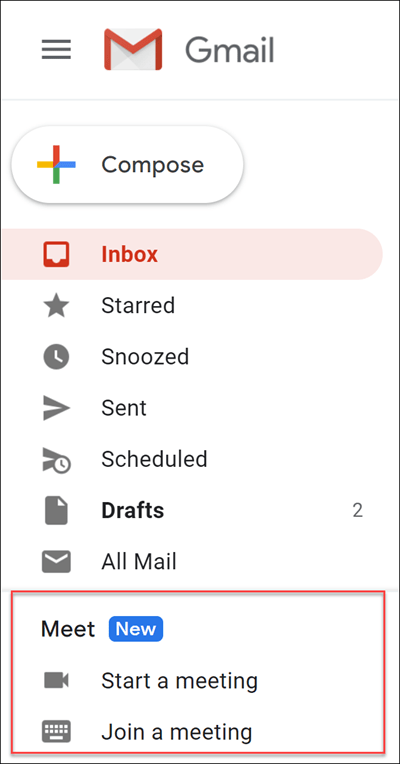
Google Meet, a video conferencing platform, is now conveniently in your Gmail making it quick to create or join a Meet. [How-to use Google Meet in Gmail]

Meet in Gmail

Multiple Signatures

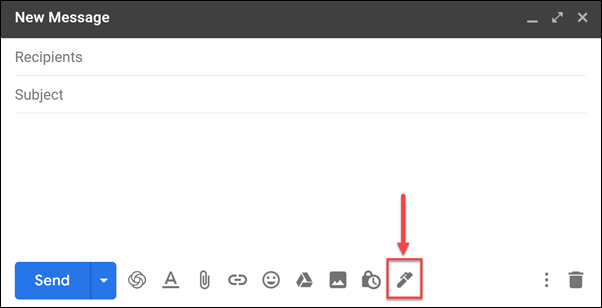
Create signatures for different situations or audiences such as: personal, professional, condensed, etc. The “Insert signatures” button is in the Gmail message window when you compose a new message, reply, or forward a message. [How-to create a Gmail signature]

Gmail signatures button

Google Meet

Present high-quality video and audio

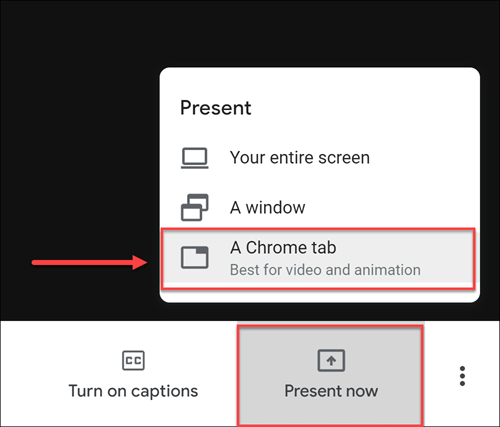
Google Meet is a video conferencing platform that many of us are using for remote meetings, office hours, and class sessions. Before you wouldn’t be able to share a streaming video in your session to your audience, but now you can! You can now share audio and video (with audio) by selecting the option to present an individual Chrome browser tab.

Present now button in Meet

See up to 16 webcams in tiled view

Google Meet can now show up to 16 webcams on the screen in tiled view. By default, Meet automatically displays the most active content and participants. Usually if you have three or more participants with webcams in a session and are not presenting (i.e. screen sharing), you will have the tiled layout shown.

16 webcams in tiled viewPhoto credit: Google

Google Sites

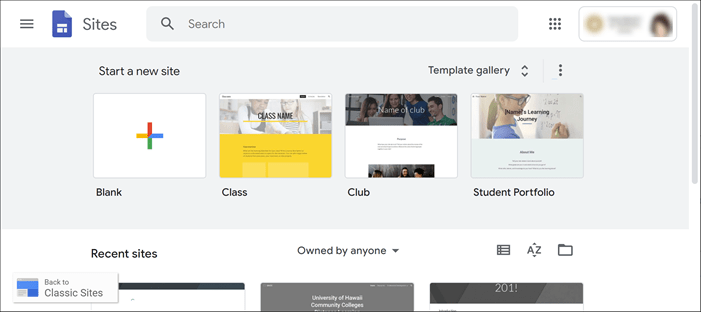
The new Google Sites is here! Classic Google Sites will be phasing out in 2021 so if you have any Google Sites you want to continue using, convert them to the new Google Sites before next year. The new Google Sites is modern and simplified with an adaptive interface allowing you to easily create professional-looking websites without having to code. [How to use the new Google Sites]

New Google Sites interface

For those of you who have been using Google Sites as weekly or topic modules for your courses to present content, but use Laulima for assignments, quizzes, forums, etc., you may want to consider using Laulima Lessons, a tool to create/present content modules. Not only is Lessons easy to use and allows you to present your content in an organized and visual way (like being able to embed content), but the advantage over Google Sites is that it can integrate items you have in other Laulima tools. This allows you to pull everything together in Lessons. You can link-in specific assignments from Laulima Assignments, specific discussion topics from Laulima Forums, and more. Contact the Educational Technology unit for assistance.

May 7, 2020December 14, 2021by rinake

Search

Recent Posts

  • Designing for Quality: How the Lamakū Course Starter PLC Has Evolved
  • Adventures in Canva Teams 
  • Lamakū – Intelligent Agents
  • Leeward Lamakū Weekly Tips (Fall 2025)
  • Capturing “My Monumental Summer”: Behind the Scenes With the EMC Video Production Unit

Categories

Recent Comments

  • rinake on Cross-Listed Courses in Laulima
  • Merissa Bunton, Ed. D. on Cross-Listed Courses in Laulima
  • bhirata on An Instructor Preview of Leeward Online Learning Orientation for Students

Archives

Accessibility

UH Accessibility Statement

Proudly powered by WordPress | Theme: Sin by vsFish.
Skip to toolbar
  • About WordPress
    • Get Involved
    • About Edublogs
    • Learn WordPress
    • Edublogs.org
    • Documentation
    • Contact
  • Log In