Skip to content
  • Blog Home
  • EMC Website

Educational Media Center

Leeward Community College

Author: twjsakiy

EMC

EMC Workshops on the Go: Zoom Remote Control

Engaging with Zoom Remote Control

“It is literally true that you can succeed best and quickest by helping others to succeed.” — Napoleon Hill

Screen sharing can add a different dimension of interactivity between yourself and your participants. In a one-on-one meeting with a student, you could screen share an example in a program to help the student to visually understand what is being discussed. After going through the example with the student, you can give the student control of your screen so that they could practice another example with the file you already have out. The opposite can also be helpful if a student is sharing their screen with you regarding an error that’s occurring on their homework. You can request for remote control to briefly go over an example on their file that might be similar to the issue they are experiencing.

Zoom Remote Control can also be a great way to help students to give smoother transitions during team presentations. Check out the video below on how remote control can help your students while presenting in Zoom.

Haven’t used the remote control tool yet? View Zoom Support’s Requesting or giving remote control page to learn more about the remote control tool.

Try it out and think about creative ways you can utilize stamps into your Zoom sessions. Then, come to our optional Virtual Open Lab via Zoom on Thursday, December 9, 2021 at 1:00-2:00 p.m. to practice, ask questions, etc. You can also contact us (Educational Technologist) for help. Lastly, there will be an opportunity at the end of this 4-part microlearning series to earn a badge of achievement.


Thanks for taking the time to visit our EMC Blog. If you have thoughts, questions, or feedback, please comment below.  – Mahalo

December 7, 2021February 16, 2022by twjsakiy
EMC

EMC Workshops on the Go: Zoom Breakout Room

Engaging with Zoom Breakout Room

“I can do things you cannot, you can do things I cannot; together we can do great things.” – Mother Teresa

Breakout rooms are an easy way to create spaces for online collaboration. Collaboration can be anything from a small group activity, checking in with teams for a team project, or creating separate topic rooms that a participant can choose to join. When using breakout rooms, have you ever considered allowing your students to choose which room they would like to enter?

Allowing students to choose a preferred room for discussion helps to provide a level of confidence in a small group discussion. Check out the video below for ideas on implementing breakout rooms that allow students to choose the room they want to enter.

Haven’t created breakout rooms yet? View our Zoom breakout room button video and Zoom Support’s Managing Breakout Rooms page to learn more about Zoom breakout rooms.

Try it out and think about creative ways you can utilize breakout rooms into your Zoom sessions. Then, come to our optional Virtual Open Lab via Zoom on Thursday, December 9, 2021 at 1:00-2:00 p.m. to practice, ask questions, etc. You can also contact us (Educational Technologist) for help. Lastly, there will be an opportunity at the end of this 4-part microlearning series to earn a badge of achievement.


Thanks for taking the time to visit our EMC Blog. If you have thoughts, questions, or feedback, please comment below.  – Mahalo
December 6, 2021February 16, 2022by twjsakiy
EMC

EMC Workshops on the Go: Zoom Stamps

Engaging with Zoom Stamps

“You can’t use up creativity. The more you use, the more you have.” — Maya Angelou

Have you ever found yourself wondering how you can integrate short interactive questions in the middle of your lecture during a Zoom session like you would in a face-to-face class to engage your students? Perhaps you’re concerned about having to switch between Zoom tools or different windows? With the stamp annotation tool, you can include your interactive questions during a Zoom session without having to switch between windows. All you would need to do is to create your question slides ahead of time and insert them where you want them in your lecture slide deck. Then when you are screen sharing your slides and come upon the question slide during your live Zoom session, ask your students to utilize the Zoom stamps found in the Annotation tool under “View Options” to mark their answer virtually on your slide with the question.

It’s a great way to get everyone involved, especially students who may still be uncomfortable grabbing the mic or writing in the chat. Check out the video below for ideas on different types of questions you could implement in your Zoom session.

Haven’t used the stamp tool yet? View Zoom Support’s Annotation for Collaboration page and our quick notes for participants and instructors (which you can also share with your students) to learn more about the stamp tool.

Try it out and think about creative ways you can utilize stamps into your Zoom sessions. Then, come to our optional Virtual Open Lab via Zoom on Thursday, December 2, 2021 at 1:00-2:00 p.m. to practice, ask questions, etc. You can also contact us (Educational Technologist) for help. Lastly, there will be an opportunity at the end of this 4-part microlearning series to earn a badge of achievement.


Thanks for taking the time to visit our EMC Blog. If you have thoughts, questions, or feedback, please comment below.  – Mahalo
November 29, 2021February 16, 2022by twjsakiy
EMC

The Ins and Outs with Laulima Forums, Rubrics, and Gradebook Integration

One reason you may have for using the new Gradebook tool in Laulima is its ability to pair with the new Rubrics tool. (Note: Laulima Rubrics can only be paired with the new Gradebook tool and not the Gradebook Classic tool.) Furthermore, the Rubrics tool integrates with other tools such as Assignments, Tests & Quizzes, and Forums, allowing you to provide transparency and feedback to students about how they are graded.

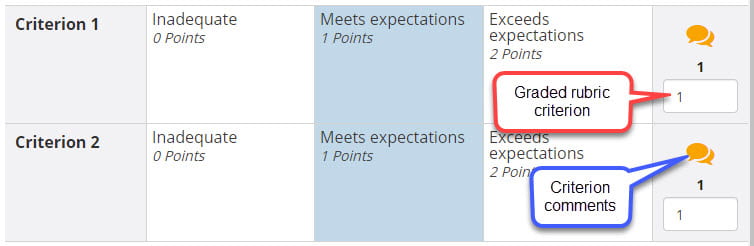
However, we would like to share about an issue regarding using a rubric (Laulima Rubrics) associated with a forum topic (Laulima Forums) and the Gradebook tool. When you are grading via Forums using an associated rubric, the graded rubric criterion (i.e. individual score for each criterion) and criterion comments (i.e. individual comments for each criterion) you may input do not transfer to the Gradebook (although the overall grade and general comments do). Thus, students are unable to see how they are graded for each criterion and any criterion comments you make using the rubric.

Graded rubric criterion and criterion comments

We have come up with a suggestion to circumvent this issue until the developers can provide a permanent solution. The purpose behind this suggestion is to still provide students with a visible rubric using the Rubrics tool when accessing the forum activity in the Forums tool.

First, add the Forums and Gradebook tools if you don’t already have them added to your Laulima course site. Importantly, hide the Rubrics tool from student’s view under Site Info > Tool Order. (We discovered a bug that sometimes allows students have the ability to edit unlocked rubrics.)

Second, associate the rubric in both the Forums and Gradebook tools.

  1. Create the rubric in the Rubrics tool.
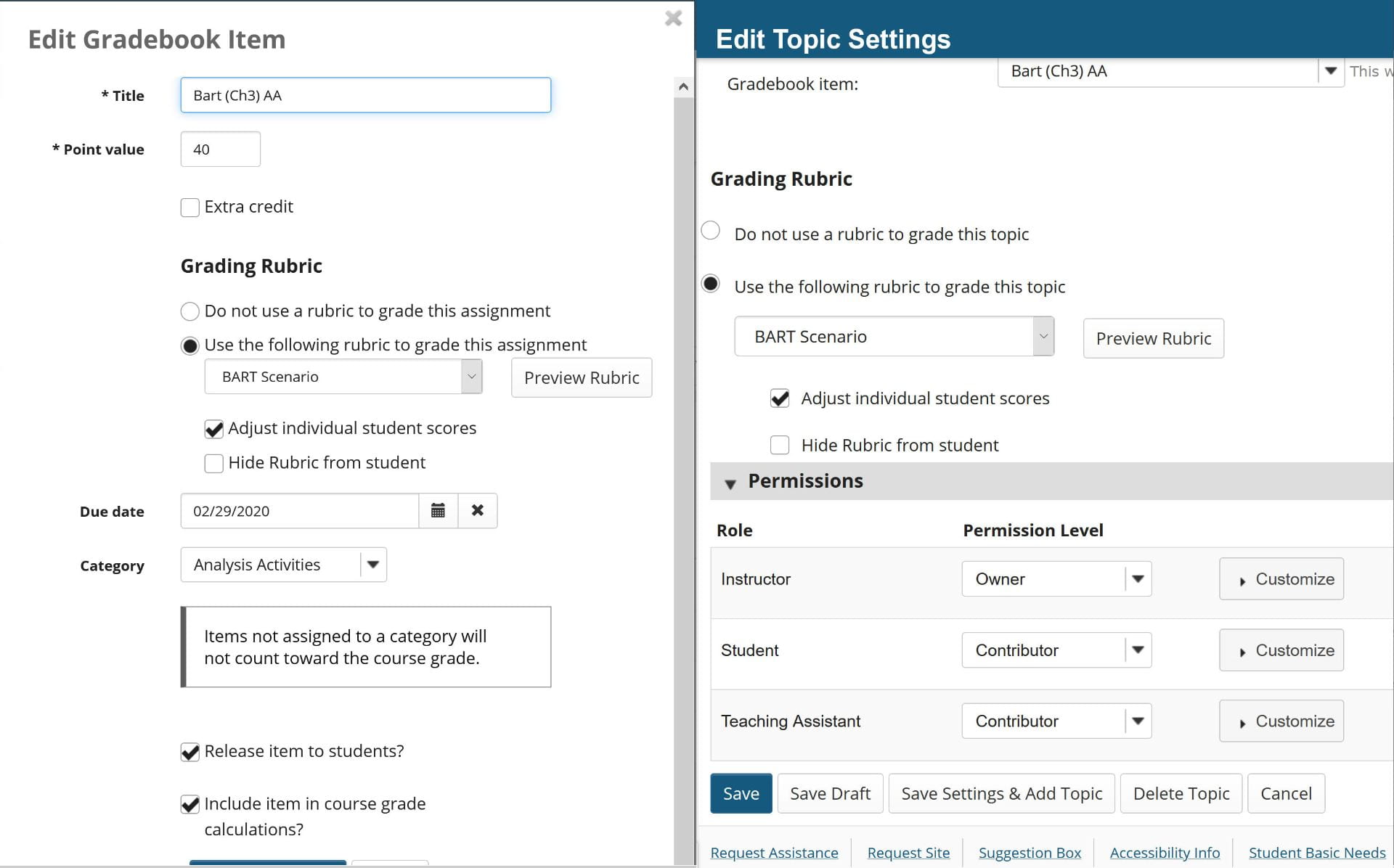
  2. Add a new gradebook item in the Gradebook tool and associate it to the rubric. (See screenshot below, left.)
  3. Associate the forum activity in the Forums tool to the Gradebook item in the forum topic settings. This will then allow you to associate it to the rubric. (See screenshot below, right.)

Edit Gradebook item to associate rubric. Edit topic settings of Forum to associate to Gradebook item and rubric.

Third, when you grade the forum activity using the rubric, grade via the rubric you associated with the Gradebook tool and not the Forums tool if you are providing a score for each criterion and/or criterion comments. (Remember, grading using the rubric via the Forums tool will not transfer the graded rubric criterion and criterion comments you make to the Gradebook tool. Only the total score and general comments transfer.)

Unfortunately, grading forum posts via the Gradebook tool may create a disconnected experience for you as the instructor, so we recommend opening two windows when grading – one for Forums and the other for Gradebook. This way you can read the students’ posts via Forums in one window as you grade and provide comments in the associated rubric via the Gradebook in the second window.

Note: UH ITS has been made aware of this issue so it may get fixed in the near future.


View Laulima New Gradebook Laulima New Gradebook: Transparency, Consistency, Efficiency session recording.

March 30, 2021February 16, 2022by twjsakiy

Search

Recent Posts

  • Designing for Quality: How the Lamakū Course Starter PLC Has Evolved
  • Adventures in Canva Teams 
  • Lamakū – Intelligent Agents
  • Leeward Lamakū Weekly Tips (Fall 2025)
  • Capturing “My Monumental Summer”: Behind the Scenes With the EMC Video Production Unit

Categories

Recent Comments

  • rinake on Cross-Listed Courses in Laulima
  • Merissa Bunton, Ed. D. on Cross-Listed Courses in Laulima
  • bhirata on An Instructor Preview of Leeward Online Learning Orientation for Students

Archives

Accessibility

UH Accessibility Statement

Proudly powered by WordPress | Theme: Sin by vsFish.
Skip to toolbar
  • About WordPress
    • Get Involved
    • About Edublogs
    • Learn WordPress
    • Edublogs.org
    • Documentation
    • Contact
  • Log In